Local SEO for Self Storage: Fix the Data Once, and the Map Rankings Follow
· Storagely Team · 12 min read · Updated
Local SEO for self storage: set up Google Business Profile, keep hours and rates consistent, earn reviews and track map rankings. Templates included.
Most local SEO problems at storage facilities aren't ranking problems. They're data problems.
The gate hours on Google say 7 a.m. The website says 6. A directory still lists the phone number from before you bought the place. The promo on your profile ended in March. Renters notice, and search engines notice too. When your details disagree with each other, Google has less reason to trust any of them.
So this guide starts with one idea: keep one source of truth for every location, and push it everywhere. Then it covers the Google Business Profile setup that matters for storage, reviews (with templates you can copy), location pages, booking from Google, tracking map rankings, Apple and Bing, and what to do if a profile gets suspended.
How Google ranks storage facilities on the map
When someone searches "storage units near me" or "self storage [city]," Google shows a map with a few facilities before the regular results. Google says it ranks those local results on three things (Google Business Profile Help):
- Relevance: how well your profile matches the search.
- Distance: how far you are from the searcher, or from the place they named.
- Prominence: how well known you are, including reviews, links and mentions across the web.
Google adds that "there's no way to request or pay for a better local ranking." Anyone selling a guaranteed map position is selling something Google says doesn't exist.
Distance is why there's no single "map ranking." You might be first two streets away and gone five miles out. You can't move your facility, but relevance and prominence widen the area where you show up.
Step 1: Set one source of truth for each location
Before touching Google, decide where each fact lives and who owns it.
| Fact | Where it should live | Who updates it |
|---|---|---|
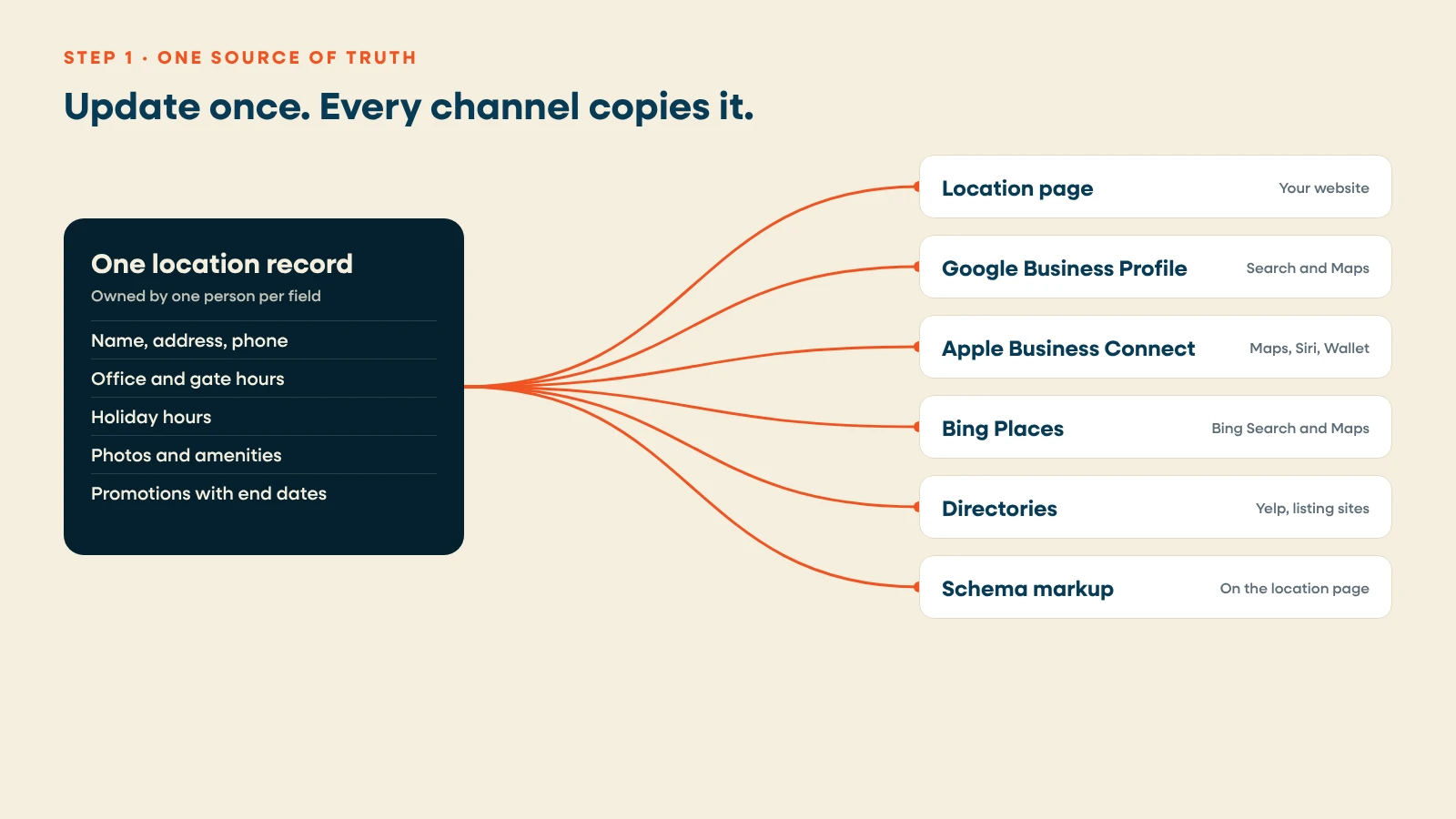
| Business name, address, phone | One location record | Owner or marketing lead |
| Office hours and gate access hours | One location record | Facility manager |
| Holiday hours | One location record, set a month ahead | Facility manager |
| Unit types, sizes and live rates | Your facility management software | Revenue manager |
| Promotions | One location record, with an end date | Marketing lead |
| Photos and amenities | One location record | Marketing lead |
Everything else (the website, Google Business Profile, Apple, Bing, directories) should copy from that record, not be edited by hand in five places.
On Storagely, that record is Atlas. Hours, photos, amenities, FAQs and promos for every location live there and push to your site. Google Business Profile sync runs the other way too: edits made in your profile land on your pages automatically.
Run a quick consistency audit
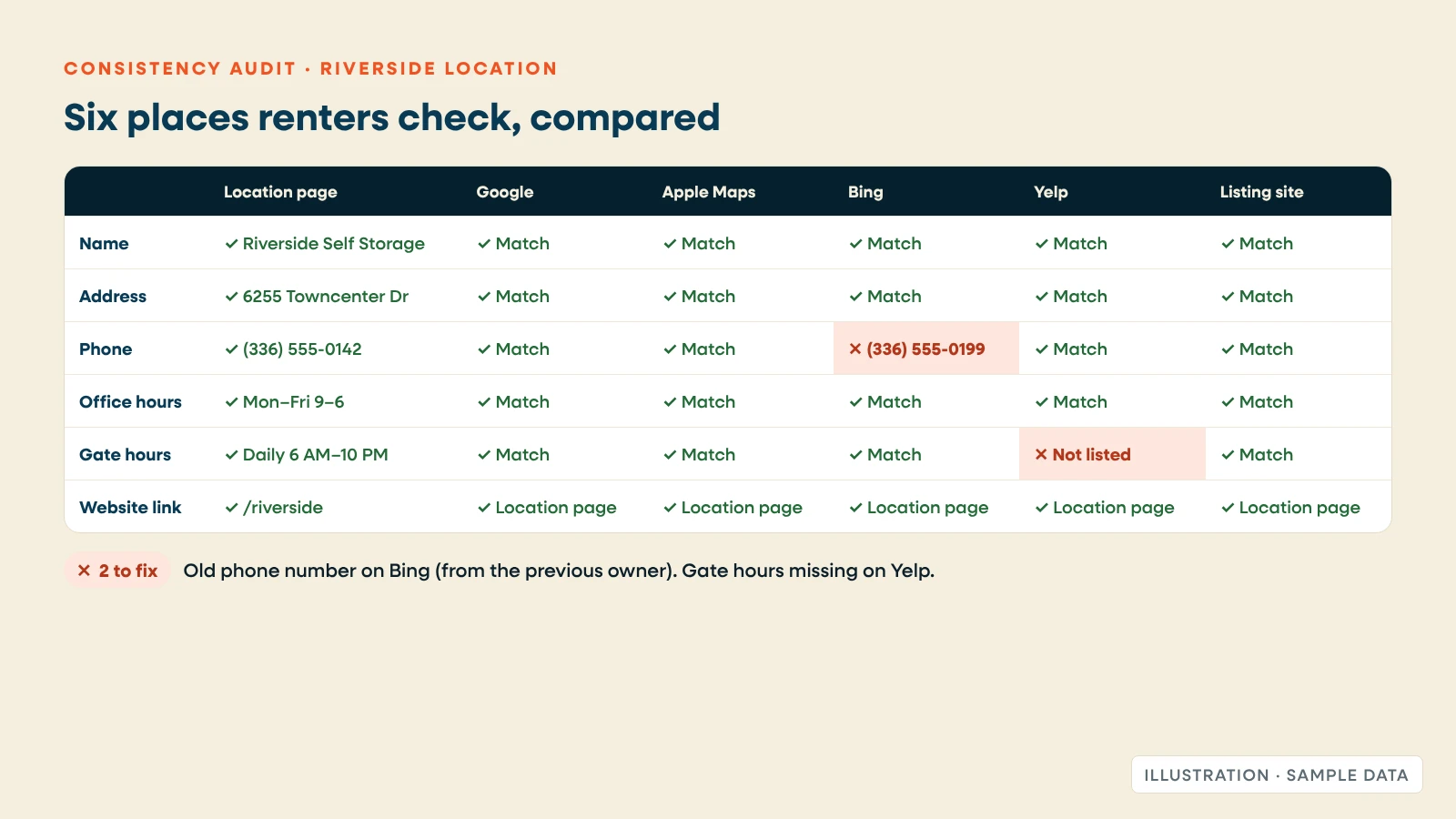
Pick one location and check six places: your location page, Google Business Profile, Apple Maps, Bing, Yelp and one industry listing site. Compare name, address, phone, office hours, access hours and website link. Fix every mismatch at the source, then let it flow out. Old phone numbers and names from a previous owner or brand are the most common leftovers.
Step 2: Set up Google Business Profile for a storage facility
Do this for every location. One facility, one profile.
Claim and verify
Search for the facility on Google Maps. Claim the profile if it exists, or create one. Verify with whatever method Google offers. Use a company Google account, and add at least two people as owners or managers so access never depends on one employee.
Name, category and address
- Name: your real business name, exactly as it appears on your sign. Adding keywords or a town name you don't use can get a profile suspended.
- Primary category: Self-storage facility. Add secondary categories only for services you really offer, such as RV or boat storage.
- Address: your facility's street address, shown publicly. Renters come to you, so this is a storefront profile, not a service-area one.
Hours
Enter office hours as your main hours. If Google offers an additional hours type for gate or access hours in your category, use it. If not, state access hours in your description and on your location page, because renters ask about them constantly. Set holiday hours ahead of every holiday.
Website link, photos and description
- Website: link each profile to that location's own page, not your homepage.
- Photos: the entrance and gate, the office, a clean unit with the door up, drive-up aisles, climate-controlled hallways and vehicle parking if you offer it. Add new ones every few months.
- Description: a plain summary of unit types, climate control, access and security, written for renters. No keyword stuffing.
Booking
Add a booking action so renters can reserve or rent from the listing. See Step 5.
What's changed on Google Business Profile (as of October 26, 2026)
| Feature | Status | Source |
|---|---|---|
| Questions and Answers | Google announced changes to Q&A in December 2025. Existing questions may still appear in Maps and can still be answered in your profile; the Q&A API was discontinued in November 2025. | Google, December 2025 |
| Ask Maps | Gemini-powered questions in Google Maps, announced March 12, 2026. Answers draw on Google's place data and reviews. | Google, March 12, 2026 |
| Reserve with Google for self storage | Available to eligible Storagely locations since September 14, 2026 | Storagely, September 2026 |
As Google changes how renters ask questions in Maps, keep the facts that answer them in your profile details, your reviews and your location page. That's one more reason to keep them complete and consistent.
Step 3: Build a review system, not a review push
Reviews feed prominence, and they help renters choose between three facilities on a map. A steady flow of recent, specific reviews beats a burst of five-star ratings followed by silence.
The rules
- No incentives. Google prohibits offering "payment, discounts, free goods and/or services" for a review (Google Maps content policy). That includes "$10 off next month for a review."
- Ask everyone, not just happy tenants. Google also prohibits merchants who "discourage or prohibit negative reviews, or selectively solicit positive reviews." Sending unhappy tenants to a private form and happy ones to Google is review gating.
- No fake or insider reviews. In the US, the FTC's rule on consumer reviews took effect October 21, 2024. It bans buying reviews, undisclosed insider reviews and suppressing reviews with groundless legal or physical threats (Federal Register, August 2024).
When to ask
- Day 3 after move-in: the tenant has used the gate and the unit, and the experience is fresh.
- At move-out: long-term tenants often write the most detailed reviews.
- After you solve a problem: a fixed gate code or a quick unit swap is worth mentioning.
Use a direct review link for each location. You can get one from that location's Business Profile.
Review request templates
Text only tenants who agreed to receive texts, such as through a consent line in your rental agreement. Rules for business texting vary, so check with your attorney.
Text message (day 3 after move-in):
Hi [first name], it's [manager name] at [facility name]. Hope the move went smoothly! If you have a minute, would you leave us an honest review? It helps neighbors find us: [review link]. Reply STOP to opt out.
Email (day 3 after move-in):
Subject: How's your new unit at [facility name]?
Hi [first name],
Thanks for choosing [facility name]. You've had a few days with your [unit size] unit, so we'd love to hear how it's going, good or bad.
Would you share an honest review on Google? It takes a minute and helps other people in [city] find storage: [review link]
If anything isn't right, just reply to this email and I'll fix it.
[Manager name] [Facility name] · [phone]
Reply to every review
Reply within a few days, briefly and specifically. Don't argue, and don't share account details in public.
Positive review:
Thanks, [first name]. Glad the drive-up 10x20 made the move easy. We're here if you need anything. – [Manager name]
Negative review:
[First name], I'm sorry the gate code didn't work on move-in night. That shouldn't happen. I'd like to make it right, so please call me at [phone] or reply to your welcome email. – [Manager name], [facility name]
Step 4: Give each location a page that matches its profile
Google compares your profile with your website. Each facility needs its own page with:
- the same name, address and phone as the profile;
- office hours, access hours and directions with landmarks renters know;
- its own photos, amenities and recent Google reviews;
- live units and prices, in the page's HTML, with a way to rent online;
- SelfStorage schema markup with the same details.
Add storage-type pages for what each location offers, such as climate controlled or boat and RV storage, so the website matches more searches than the profile can. Our self storage SEO keywords guide shows which searches belong on which page, and the self storage SEO checklist has copy-ready schema.
Step 5: Let renters book from Google
A booking action on your profile takes a renter from the map result straight to reserving or renting. That's the shortest path from search to rental there is.
Storagely's Reserve with Google, available to eligible locations since September 14, 2026, publishes your unit types, sizes, options such as climate control, and current starting prices to Google. It links renters into your Storagely rental or reservation flow and helps identify the rentals and reservations that started on Google (Storagely, September 2026).
Step 6: Track where you rank across the map
One ranking check from your office tells you almost nothing, because map results change block by block. A geo-grid checks your position from points spread across your trade area, so you can see where you're strong and where you disappear.
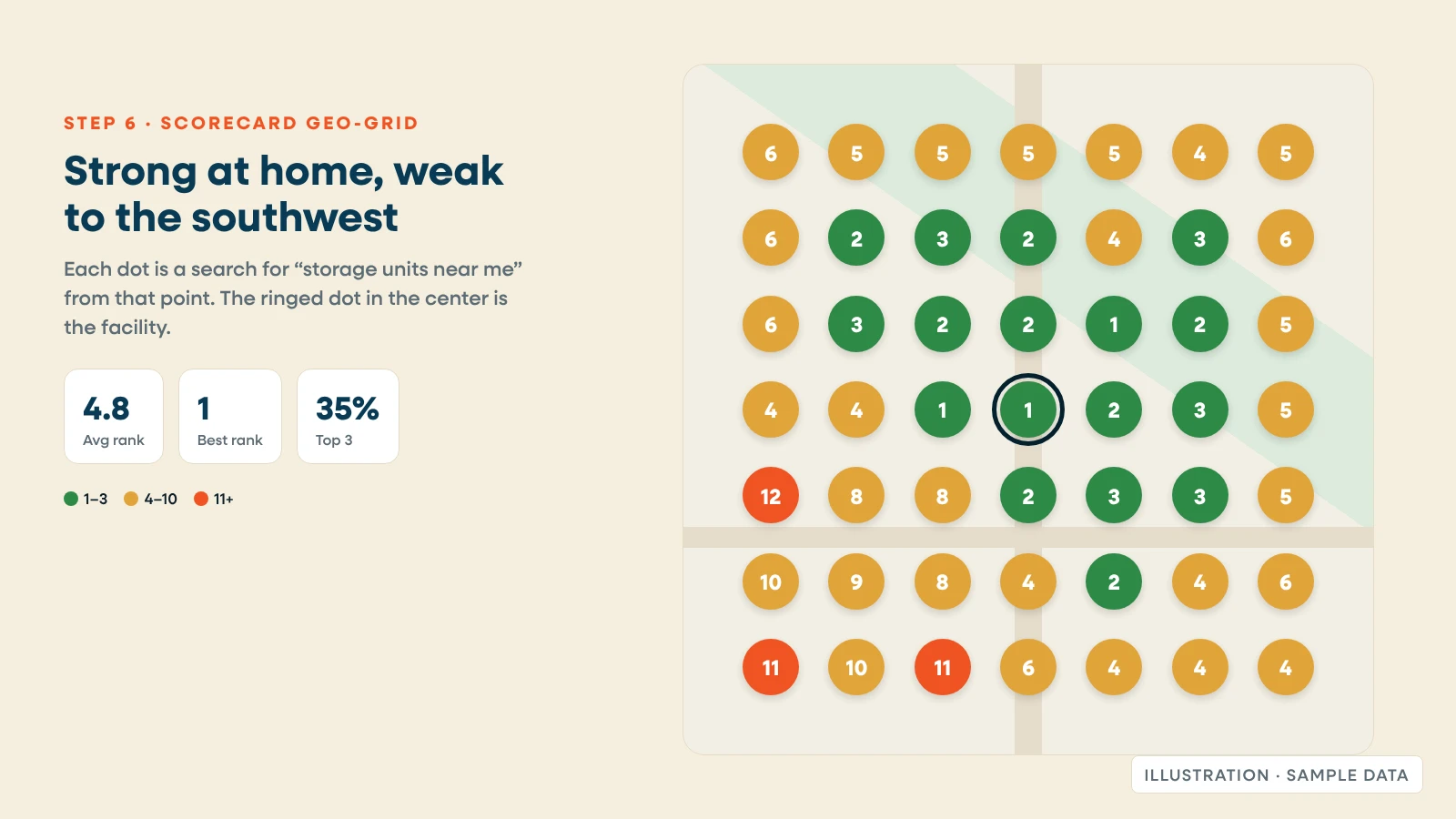
Read a geo-grid three ways:
- Strong center, weak edges: normal. Distance is working against you at the edges.
- Weak in one direction: usually a competitor there, or a gap in relevance. Check which facility outranks you, and compare categories, reviews and photos.
- Weak even near the facility: look at the basics: verification, category, name and the website link.
Each month, also read each profile's performance report (calls, direction requests, website clicks and bookings) and compare it with the rentals that location produced.
Step 7: Claim Apple Business Connect and Bing Places
Google isn't the only map.
- Apple Business Connect is free. It controls how your facility appears across "Apple Maps, Messages, Wallet, Siri and other apps" (Apple, January 2023). Claim each location, then match hours, phone, photos and website link to your source of truth.
- Bing Places for Business manages your listing on Bing Search and Bing Maps at no cost. Microsoft rebuilt its import from Google Business Profile in October 2025 for multi-location businesses (Search Engine Journal, October 2025). Import, then check every field, because imports can carry old data across.
Step 8: Handle a suspended or disabled profile
Suspensions usually trace back to a few causes: keywords added to the business name, an address that doesn't match the signage, a change of ownership, or edits that conflict with Google's records.
- Find and fix the cause first. Compare the profile with Google's guidelines: real name, real address, correct category.
- Gather evidence. Google asks for documents such as a business license, registration or tax certificate, or a utility bill, with the name and address matching the profile.
- Appeal through Google's appeals tool. Sign in with the account that manages the profile, choose the decision, upload evidence and explain. You get one submission per appeal (Google Business Profile Help).
- Don't create a new profile. Google says plainly: "Do not create a new Business Profile for the same business."
Keep a folder for each location with a storefront photo showing the sign, the business license and a recent utility bill. If you ever need to appeal, it saves days.
Local SEO for multi-location operators
Everything above applies to each location separately. Each facility has to win its own few miles. What changes with scale is how you manage it:
- Keep one record per location, and push changes to every channel from it.
- Use consistent naming across the portfolio, but never add keywords to names.
- Give every location its own page, photos and review link.
- Manage profiles in location groups, with at least two owners per group.
- Review a geo-grid for every location quarterly, and the weakest ones monthly.
Where Storagely fits
- Atlas: one record per location for hours, photos, amenities, FAQs and promos, pushed to your site. Google Business Profile sync means edits made in your profile land on your pages.
- Location pages: Core Site builds a page for every facility from that record, with recent Google reviews on the page and SelfStorage schema (Essential and up).
- Reserve with Google: booking from your Google listing for eligible locations. $25 per location per month, included in Dominate.
- Scorecard: a local geo-grid, rankings and reviews for each location.
- Coming in Q1 2027: Echo, for managing reviews.
Prices are on our pricing page (as of October 2026). We don't guarantee rankings. See everything included on our self storage SEO page.
Your next step: Run the free Scorecard visibility scan on one location. It shows where you rank across your area, with a local geo-grid, before asking for contact details.
Related reading: Self storage SEO checklist · Self storage SEO keywords · A new way for self-storage operators to access Reserve with Google
Frequently asked questions
How do I get my storage facility in the Google map pack?
Verify a Google Business Profile for each location with the Self-storage facility category, your real name and address, accurate hours and photos. Link it to a matching location page, and earn a steady flow of reviews. Google ranks local results on relevance, distance and prominence, and you can't pay for a better position.
Why does my facility rank near the office but not across town?
Distance is one of Google's three local ranking factors. Strong relevance and prominence widen the area where you show up, but they can't remove distance. A geo-grid shows where you rank across your whole trade area.
Can I offer a discount for Google reviews?
No. Google's content policy prohibits offering payment, discounts or free services for reviews, and it prohibits asking only happy customers. In the US, the FTC's rule on consumer reviews also bans buying reviews. Ask every tenant, and reply to every review.
Does Google Business Profile still have Q&A?
Google announced changes to Q&A in December 2025, but existing questions may still appear in Maps and can still be answered in your profile. The Q&A API was discontinued in November 2025. Ask Maps was announced in March 2026. Keep your profile details, reviews and location page complete so renters can find accurate answers.
What should I do if my Google Business Profile is suspended?
Fix the cause first, such as keywords in the name or an address mismatch. Then appeal through Google's appeals tool with documents like a business license or utility bill that match the profile. Don't create a new profile for the same business.